> ## Documentation Index
> Fetch the complete documentation index at: https://docs.galtea.ai/llms.txt
> Use this file to discover all available pages before exploring further.
# Quickstart
> Validate your AI product with Galtea
This quickstart walks you through running your first evaluation in Galtea for a conversational product using the Python SDK. It is intended for a technical audience and covers RAG pipelines, conversational scenarios, and security or safety checks.
## Evaluation Workflow Overview
Provide details about your product so our models can create tailored testing content.Set up the Galtea Python SDK to interact with the platform.Track different implementations to compare improvements over time.Create a test dataset to generate the test cases you’ll evaluate.Select from our metrics library or bring your own custom metrics.Test your product version with the selected test and metrics.Explore detailed insights and compare versions on the dashboard.
## 1. Tell Us About Your Product
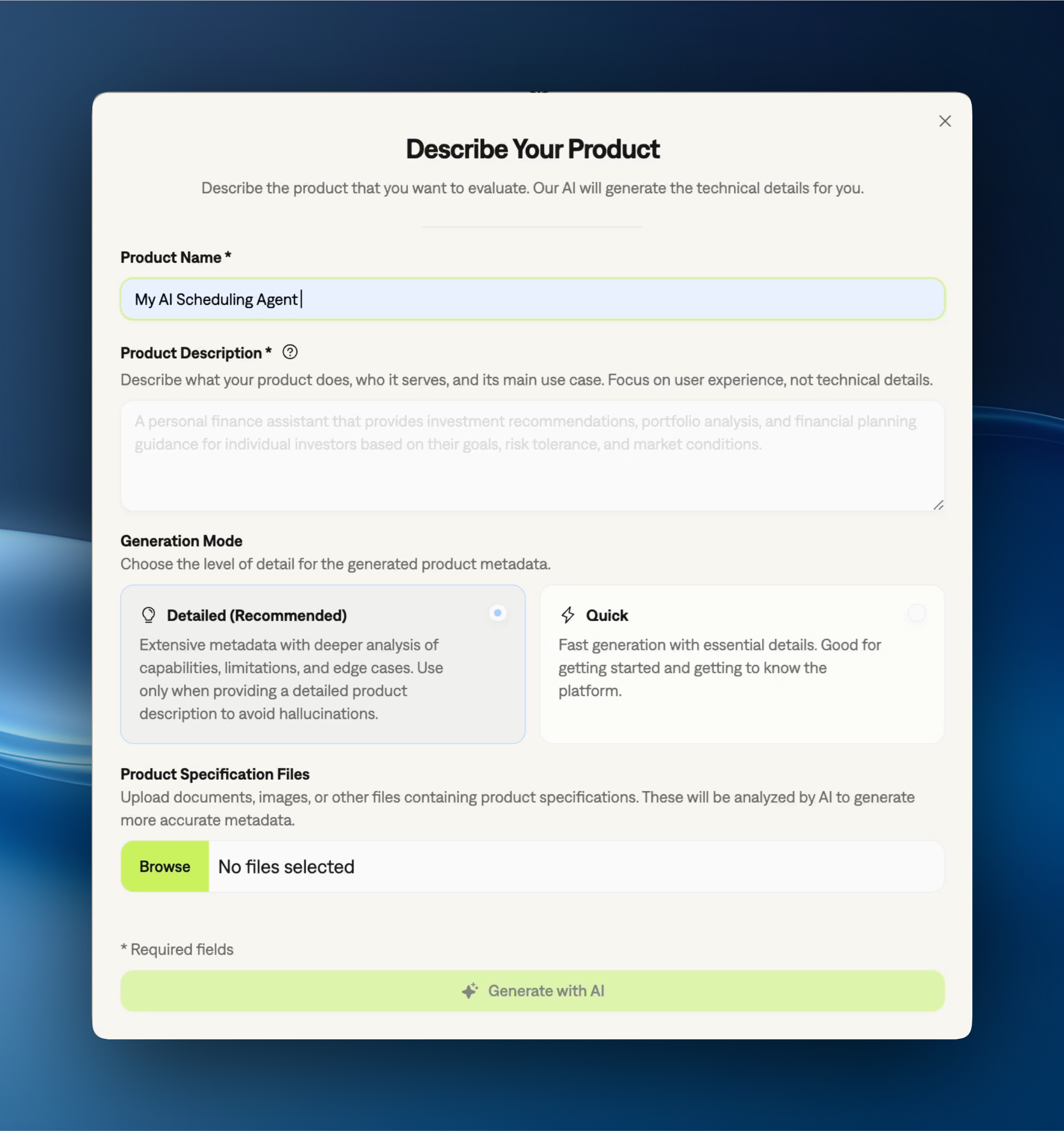
If you’re new to Galtea, start by creating an account and registering your first product in the dashboard: [Go to the dashboard](https://platform.galtea.ai/).
Follow the **Onboarding** checklist on the product page (this is the guided setup shown inside your product). It will prompt you for product details and help you generate an API key. The product details you provide there are used to tailor generated tests and evaluations.
Keep your **Product ID** and **API key** handy for the SDK steps below.
The product information is crucial – it powers our ability to generate synthetic test data that’s specific to your use case.
## 2. Get Started with the SDK
You can use Galtea from the dashboard or via the Python SDK. This quickstart uses the Python SDK.
In the [Galtea dashboard](https://platform.galtea.ai/), copy the API key you created during your product page onboarding (or navigate to **[Settings](https://platform.galtea.ai/settings) > Generate API Key**).
```bash theme={"system"}
pip install galtea
```
```python theme={"system"}
from galtea import Galtea
# Verify the SDK is properly installed by initializing it
# Note: Replace "YOUR_API_KEY" with your actual API key from the Galtea dashboard
galtea = Galtea(api_key="YOUR_API_KEY")
print("Galtea SDK installed successfully!")
```
## 3. Version Your Product
Use versions to track iterations of your product and compare evaluation results over time. Each evaluation is tied to a version, so you can see how changes impact metrics.
If you completed the **Onboarding** checklist on your product page, you already have an initial version (created automatically).
To find IDs in the dashboard, open your product and click the **3-dot menu** on any item, then select **Copy ID**.
Alternatively, list them via the SDK:
```python theme={"system"}
products = galtea.products.list()
for p in products:
print(p.id, p.name)
versions = galtea.versions.list(product_id=products[0].id)
for v in versions:
print(v.id, v.name)
```
Then set them once here:
```python theme={"system"}
product_id = "your_product_id"
version_id = "your_version_id"
```
## 4. Create Your Tests
**Prefer to generate tests automatically?** If you've defined [Specifications](/concepts/product/specification) for your product, Galtea can generate tests and metrics for you — see the [Specification-Driven Evaluations](/sdk/tutorials/specification-driven-evaluations) tutorial.
A single conversational product typically includes multiple components. In Galtea, you evaluate each component by creating a different [test](/concepts/product/test) type, think of each test as a lens on the same system:
* **RAG pipelines** → create an **Accuracy** test (`type="ACCURACY"`)
* **Security or safety aspects** → create a **Security & Safety** test (`type="SECURITY"`)
* **Conversational scenarios** → create a **Behavior** test (`type="BEHAVIOR"`)
You can create one or multiple test types for the same product, depending on which components you want to evaluate.
After creating a test, give it a moment to finish generating test cases. You can track progress in the dashboard.
If you already created a test during onboarding, you can reuse it here—skip the `tests.create(...)` step and just list its test cases using the test ID from the dashboard.
Accuracy tests are used to evaluate RAG pipelines and QA-style components within a conversational product. Galtea generates single-turn test cases (input and expected output) from a knowledge base to assess response quality and factual correctness.
```python theme={"system"}
test = galtea.tests.create(
name="rag-accuracy-test",
type="ACCURACY",
product_id=product_id,
ground_truth_file_path="path/to/knowledge.md",
language="english",
max_test_cases=20,
)
```
After a brief wait for test case generation, list the test cases:
```python theme={"system"}
test_cases = galtea.test_cases.list(test_id=test.id)
print(f"Using test '{test.name}' with {len(test_cases)} test cases.")
```
Learn more about [Accuracy Tests](/concepts/product/test/accuracy-tests) and their configuration options.
Security & Safety tests probe safety and security boundaries (e.g., misuse, toxicity, data leakage). For this quickstart, we’ll create a small **Misuse** test.
```python theme={"system"}
test = galtea.tests.create(
name="misuse-security-test",
type="SECURITY",
product_id=product_id,
variants=["misuse"],
strategies=["original"], # original must always be included
max_test_cases=20,
)
```
After a brief wait for test case generation, list the test cases:
```python theme={"system"}
test_cases = galtea.test_cases.list(test_id=test.id)
print(f"Using test '{test.name}' with {len(test_cases)} test cases.")
```
Learn more about [Security & Safety Tests](/concepts/product/test/security-tests), [threats](/concepts/product/test/security-threats), and [strategies](/concepts/product/test/security-strategies).
Behavior tests evaluate multi-turn conversations. Each test case defines a goal/persona/scenario and is meant to be run with the [Conversation Simulator](/concepts/product/test/case/conversation-simulator).
```python theme={"system"}
test = galtea.tests.create(
name="conversation-behavior-test",
type="BEHAVIOR",
product_id=product_id,
language="english",
max_test_cases=20,
strategies=["written"],
)
```
After a brief wait for test case generation, list the test cases:
```python theme={"system"}
test_cases = galtea.test_cases.list(test_id=test.id)
print(f"Using test '{test.name}' with {len(test_cases)} test cases.")
```
Learn more about [Behavior Tests](/concepts/product/test/behavior-tests) and [Conversation Simulation](/concepts/product/test/case/conversation-simulator).
## 5. Choose Your Metrics
Metrics define how evaluation outputs are scored. Galtea provides built-in metrics for common use cases (factual accuracy, faithfulness, toxicity, role adherence, and [many more](/concepts/metric)), and you can also create custom metrics with your own judge prompts. You can also [generate metrics from specifications](/concepts/metric/ai-generation) — the AI creates tailored judge prompts for each spec.
For a RAG-style Accuracy test, a good default is **[Factual Accuracy](/concepts/metric/factual-accuracy)**.
```python theme={"system"}
metric = galtea.metrics.get_by_name(name="Factual Accuracy")
```
For Misuse Security & Safety tests, we’ll use **[Misuse Resilience](/concepts/metric/misuse-resilience)**.
```python theme={"system"}
metric = galtea.metrics.get_by_name(name="Misuse Resilience")
```
For conversational evaluations, start with a metric like **[Role Adherence](/concepts/metric/role-adherence)**.
```python theme={"system"}
metric = galtea.metrics.get_by_name(name="Role Adherence")
```
## 6. Run the Evaluation
Now connect Galtea to your product. You define an **agent function** — a wrapper that takes a test case input, calls your AI system, and returns its output. The SDK then loops through test cases, calls your agent, and scores the results via [evaluations](/concepts/product/version/session/evaluation).
The SDK supports three agent function signatures — pick the one that matches how much context your agent needs:
The quickest way to get started. Your function receives just the latest user message as a string.
```python theme={"system"}
def my_agent(user_message: str) -> str:
# In a real scenario, call your model here
return f"Your model output to: {user_message}"
```
Use this when your agent needs the full conversation context. Your function receives the message list in the OpenAI format (`{"role": "...", "content": "..."}`).
```python theme={"system"}
def my_agent(messages: list[dict]) -> str:
# messages follows the standard chat format:
# [{"role": "user", "content": "..."}, {"role": "assistant", "content": "..."}, ...]
user_message = messages[-1]["content"]
return f"Your model output to: {user_message}"
```
For full control over input and output — including optional usage tracking, cost tracking, and retrieval context for RAG evaluations.
```python theme={"system"}
def my_agent(input_data: AgentInput) -> AgentResponse:
user_message = input_data.last_user_message_str()
# Access structured input fields from the first user message's metadata
# (e.g. when test case input is {"user_message": "hello", "chat_type": "support"})
first_msg = input_data.messages[0] if input_data.messages else None
chat_type = first_msg.metadata.get("chat_type") if first_msg and first_msg.metadata else None
# In a real scenario, call your model here
model_output = f"Your model output to: {user_message}"
# Return AgentResponse with optional usage/cost tracking
return AgentResponse(
content=model_output,
usage_info={"input_tokens": 100, "output_tokens": 50},
)
```
All three signatures work with `evaluations.run()`, `inference_results.generate()`, and `simulator.simulate()`. Both sync and async functions are supported. The SDK auto-detects which signature you're using from the type hint on the first parameter.
For the full list of fields available on `AgentInput` (including structured input access via message metadata), see the [AgentInput reference](/sdk/api/agent/input).
```python theme={"system"}
for test_case in test_cases:
# Create a session linked to the test case and version
session = galtea.sessions.create(
version_id=version_id,
test_case_id=test_case.id,
)
# Run a synthetic user conversation against your agent
inference_result = galtea.inference_results.generate(
session=session,
agent=my_agent,
input=test_case.input,
)
# Evaluate the full conversation (session)
galtea.evaluations.create(
session_id=session.id,
metrics=[{"name": metric.name}],
)
print(f"Submitted evaluations for version {version_id} using test '{test.name}'.")
```
```python theme={"system"}
for test_case in test_cases:
# Create a session linked to the test case and version
session = galtea.sessions.create(
version_id=version_id,
test_case_id=test_case.id,
)
# Run a synthetic user conversation against your agent
inference_result = galtea.inference_results.generate(
session=session,
agent=my_agent,
input=test_case.input,
)
# Evaluate the full conversation (session)
galtea.evaluations.create(
session_id=session.id,
metrics=[{"name": metric.name}],
)
print(f"Submitted evaluations for version {version_id} using test '{test.name}'.")
```
```python theme={"system"}
for test_case in test_cases:
# Create a session linked to the test case and version
session = galtea.sessions.create(
version_id=version_id,
test_case_id=test_case.id,
)
# Run a synthetic user conversation against your agent
galtea.simulator.simulate(
session_id=session.id,
agent=my_agent,
max_turns=test_case.max_iterations or 10,
)
# Evaluate the full conversation (session)
galtea.evaluations.create(
session_id=session.id,
metrics=[{"name": metric.name}],
)
print(f"Submitted evaluations for version {version_id} using test '{test.name}'.")
```
If you already computed a score, you can upload it directly: `{"name": "my-metric", "score": 0.85}`.
## 7. See Your Results
Once your evaluations are submitted, open your product in the [Galtea platform](https://platform.galtea.ai/) and head to **Analytics**. Start with the aggregate scores to get a quick baseline, then slice by **version**, **test**, and **metric** to see where performance shifts.
The most useful part is drilling into individual test cases: you can inspect the exact prompt/output pair (or the full conversation for scenarios) and understand which specific inputs move the score up or down. This makes it easier to identify failure patterns, validate fixes in new versions, and iterate with confidence as you move toward production.
```python theme={"system"}
print(f"View results at: https://platform.galtea.ai/product/{product_id}")
```
## Next Steps
Congratulations! You’ve completed your first evaluation with Galtea.
You can now explore more advanced features like:
Learn how to capture and analyze the internal operations of your AI agent.
Learn how to log and evaluate user queries from your production environment.
Use specifications to automate test type selection and metric generation.
## Dive Deeper
Explore these concepts to tailor tests, metrics, and workflows to your product. The [Concepts overview](/concepts/overview) shows how they all connect at a glance.
How Galtea's concepts connect — diagram + per-entity quick reference.
A functionality or service being evaluated
A specific iteration of a product
A set of test cases for evaluating product performance
A full conversation between a user and an AI system.
A single turn in a conversation between a user and the AI.
The assessment of an evaluation using a specific metric's criteria
Ways to evaluate and score product performance
If you have any questions or need assistance, contact us at [support@galtea.ai](mailto:support@galtea.ai).
 Keep your **Product ID** and **API key** handy for the SDK steps below.