> ## Documentation Index
> Fetch the complete documentation index at: https://docs.galtea.ai/llms.txt
> Use this file to discover all available pages before exploring further.
# Direct Inferences and Evaluations from the Platform
> Learn how to configure Endpoint Connections to run inferences and evaluations directly from the Galtea Dashboard, without writing any SDK code.
Galtea allows you to run inferences against your AI system and evaluate its responses **directly from the Dashboard**, without writing any SDK code. This is made possible by [Endpoint Connections](/concepts/product/endpoint-connection), which tell Galtea how to call your API, extract the response, and manage session state across turns.
This guide covers the **platform-based** workflow. If you prefer to generate inferences programmatically (e.g., in a CI/CD pipeline or custom script), see the [SDK tutorials](/sdk/tutorials/run-test-based-evaluations) instead.
## Prerequisites
Before you begin, make sure you have the following set up in the [Galtea Dashboard](https://platform.galtea.ai/):
* A [Product](/concepts/product) representing your AI system
* A [Test](/concepts/product/test) with at least one [Test Case](/concepts/product/test/case) to run against your endpoint
## Workflow Overview
Define how Galtea should call your AI endpoint — URL, authentication, request format, and response extraction.
Create a new version of your product and attach the endpoint connection to it.
Select a test and run it against the version. Galtea calls your endpoint for each test case and records the inference results.
Once inferences are generated, trigger evaluations with the metrics of your choice to assess your AI's performance.
## Step 1: Create an Endpoint Connection
Navigate to your product in the Dashboard and go to the **Endpoint Connections** section. Click **New Endpoint Connection** and configure the following:
1. **Name** — A descriptive name (e.g., "Production Chat API").
2. **Type** — Select `CONVERSATION` for the primary request/response endpoint.
3. **URL** — The full URL of your AI endpoint (e.g., `https://api.company.com/v1/chat`).
4. **HTTP Method** — Typically `POST`.
5. **Authentication** — Choose the auth type (`Bearer`, `API_KEY`, `Basic`, or `None`) and provide the token.
6. **Input Template** — A Jinja2 template that defines the request body Galtea will send.
7. **Output Mapping** — JSONPath expressions that tell Galtea how to extract values from the response.
### Input Template
The input template uses [Jinja2](https://jinja.palletsprojects.com/) syntax with placeholders that Galtea fills automatically. At minimum, use `{{ input.user_message }}` to inject the test case input:
```jinja2 theme={"system"}
{
"model": "gpt-4",
"messages": [
{"role": "system", "content": "You are a helpful assistant."},
{"role": "user", "content": "{{ input.user_message }}"}
]
}
```
For multi-turn conversations, use `past_turns` to include conversation history:
```jinja2 theme={"system"}
{
"model": "gpt-4",
"messages": [
{"role": "system", "content": "You are a helpful assistant."},
{% for turn in past_turns %}
{"role": "user", "content": "{{ turn.input }}"},
{"role": "assistant", "content": "{{ turn.output }}"},
{% endfor %}
{"role": "user", "content": "{{ input.user_message }}"}
]
}
```
See [Endpoint Connection — Input Template](/concepts/product/endpoint-connection#input-template) for the full list of available placeholders and advanced template examples.
### Output Mapping
The output mapping tells Galtea how to extract values from the API response using [JSONPath](https://goessner.net/articles/JsonPath/) expressions. The `output` key is required:
```json theme={"system"}
{
"output": "$.choices[0].message.content"
}
```
You can also extract additional values to store as session metadata:
```json theme={"system"}
{
"output": "$.choices[0].message.content",
"retrieval_context": "$.choices[0].retrieval_context",
"session_id": "$.metadata.session_id"
}
```
Any extra key beyond the [special keys](/concepts/product/endpoint-connection-configuration#special-keys) (`output`, `retrieval_context`, `session_id`, `traces`) is saved to the session metadata and becomes available as a `{{ key }}` placeholder in subsequent turns.
#### Sending an extracted value back (the round-trip)
Extracting a value is only **half** of stateful multi-turn handling. If your agent returns an identifier on the first turn — a `thread_id`, `conversation_id`, or any token that groups subsequent messages — you must also **reference it in the Input Template** so Galtea sends it back on the next turn. Extraction alone stores the value but never resends it.
The round-trip has two coordinated sides:
```json Output Mapping (extract) theme={"system"}
{
"output": "$.content",
"thread_id": "$.thread_id"
}
```
```jinja2 Input Template (re-send) theme={"system"}
{
"message": { "type": "human", "content": "{{ input.user_message }}" },
"thread_id": "{{ thread_id }}"
}
```
Turn by turn:
1. **Turn 1** — `thread_id` has no value yet, so `{{ thread_id }}` renders as an empty string. Your agent creates a new thread and returns its id in the response.
2. **Extraction** — Output Mapping captures `$.thread_id` into session metadata.
3. **Turn 2+** — `{{ thread_id }}` now renders the captured id, so every following message is routed to the same thread.
Configuring the Output Mapping but leaving a **hardcoded** id (or omitting `{{ thread_id }}` entirely) in the Input Template is the most common mistake: the value is captured but never resent, so the agent either starts a fresh thread every turn or — worse, with a fixed id — collides every conversation onto one shared thread and leaks context across unrelated test cases.
On the first turn, undefined placeholders render as empty strings. If your agent **rejects** an empty `thread_id` (rather than treating it as "create a new thread"), omit the field entirely on the first turn with a conditional, minding the trailing comma so the body stays valid JSON:
```jinja2 theme={"system"}
{
"message": { "type": "human", "content": "{{ input.user_message }}" }{% if thread_id %},
"thread_id": "{{ thread_id }}"{% endif %}
}
```
See [Templates & Mapping — State Management](/concepts/product/endpoint-connection-configuration#state-management) for the full reference on how extracted values are stored and reused across turns.
## Step 2: Create a Version with the Endpoint Connection
Navigate to your product and create a new **Version**. When configuring the version:
1. Fill in the version name, model, and any other relevant properties.
2. In the **Conversation Endpoint Connection** field, select the endpoint connection you created in Step 1.
The Conversation Endpoint Connection is the only required endpoint connection. For most integrations, this single endpoint handles the entire interaction lifecycle.
If your AI system requires separate endpoints for session initialization or cleanup, you can optionally configure **Initialization** and **Finalization** endpoint connections. See [Version — Multi-Step Session Lifecycle](/concepts/product/version#multi-step-session-lifecycle-advanced) for details.
## Step 3: Run a Test
Once your version is set up with an endpoint connection, you can run tests directly from the Dashboard:
1. Navigate to your product's **Tests** section.
2. Select the test you want to run.
3. Choose the version with the configured endpoint connection.
4. Start the test run.
Galtea will iterate through each test case, call your endpoint using the configured endpoint connection, and record the resulting [Inference Results](/concepts/product/version/session/inference-result). Each test case produces a session with one or more inference results depending on whether it's a single-turn or multi-turn test.
## Step 4: Evaluate the Results
After the inferences have been generated, you can trigger evaluations:
1. Navigate to the session results in the Dashboard.
2. Select the [Metrics](/concepts/metric) you want to use for the evaluation.
3. Run the evaluation.
Galtea will assess each inference result using the selected metrics and provide scores and explanations.
For single-turn tests, metrics like [Factual Accuracy](/concepts/metric/factual-accuracy) and [Answer Relevancy](/concepts/metric/answer-relevancy) work well. For multi-turn conversations, consider [Knowledge Retention](/concepts/metric/knowledge-retention), [Role Adherence](/concepts/metric/role-adherence), and [Conversation Completeness](/concepts/metric/conversation-completeness).
## Collecting Traces During Direct Inference
There are three ways to collect [traces](/concepts/product/version/session/trace) during Direct Inference:
1. **Output Mapping (no code)** — Extract traces from the API response using a `traces` key in your output mapping.
2. **SDK `set_context` (in your handler)** — Pass `{{ inference_result_id }}` to your endpoint and use the SDK to create traces from within the handler.
3. **W3C Trace Context Propagation (zero code)** — Enable the `traceparent` header to automatically correlate your OTEL spans with Galtea inference results.
### Option 1: Extract Traces via Output Mapping
If your endpoint returns trace data in its response, you can extract it using the `traces` key in the output mapping. Galtea will store each trace object linked to the inference result automatically.
**Example API response:**
```json theme={"system"}
{
"response": "The answer is 42.",
"traces": [
{
"name": "retrieve_context",
"type": "RETRIEVER",
"latencyMs": 120,
"inputData": { "query": "meaning of life" },
"outputData": { "documents": ["..."] }
},
{
"name": "generate_response",
"type": "GENERATION",
"latencyMs": 350,
"inputData": { "context": "..." },
"outputData": { "text": "The answer is 42." }
}
]
}
```
**Output Mapping:**
```json theme={"system"}
{
"output": "$.response",
"traces": "$.traces"
}
```
Galtea extracts the `traces` array and creates `Trace` entities linked to the inference result. Each object in the array must contain at least a `name` field and can include any [Trace properties](/concepts/product/version/session/trace#trace-properties):
| Property | Type | Required | Description |
| --------------- | ------ | -------- | ------------------------------------------------------------------------------------------------------------------- |
| `name` | string | Yes | Name of the traced operation |
| `type` | string | No | One of: `SPAN`, `GENERATION`, `EVENT`, `AGENT`, `TOOL`, `CHAIN`, `RETRIEVER`, `EVALUATOR`, `EMBEDDING`, `GUARDRAIL` |
| `description` | string | No | Human-readable description of the operation |
| `inputData` | object | No | Input parameters passed to the operation |
| `outputData` | object | No | Result returned by the operation |
| `error` | string | No | Error message if the operation failed |
| `latencyMs` | number | No | Execution time in milliseconds |
| `metadata` | object | No | Additional custom metadata |
| `startTime` | string | No | ISO 8601 timestamp when the operation started |
| `endTime` | string | No | ISO 8601 timestamp when the operation completed |
| `parentTraceId` | string | No | ID of the parent trace for hierarchical relationships |
This approach requires no SDK code in your endpoint handler — it works purely through configuration.
### Option 2: Use `set_context` in Your Endpoint Handler
When running evaluations via Direct Inference, you can collect traces from your endpoint handler by linking the `inference_result_id` to your tracing context. Galtea automatically sends the `X-Galtea-Inference-Id` HTTP header with every Direct Inference request, so your endpoint can read it directly — no template changes needed.
Alternatively, you can pass `{{ inference_result_id }}` in the input template if you prefer to receive it in the request body.
#### 1. Get the `inference_result_id`
**From the HTTP header (recommended)** — available automatically on every Direct Inference call:
```python theme={"system"}
inference_result_id = request.headers.get("X-Galtea-Inference-Id")
```
**From the input template** — include the placeholder in your endpoint connection's input template:
```jinja2 theme={"system"}
{
"model": "gpt-4",
"messages": [
{"role": "user", "content": "{{ input.user_message }}"}
],
"metadata": {
"inference_result_id": "{{ inference_result_id }}"
}
}
```
#### 2. Use `set_context` in Your Endpoint Handler
In your API endpoint, extract the `inference_result_id` from the request and use the SDK's `set_context` / `clear_context` to associate traces with it:
```python theme={"system"}
@trace(type=TraceType.AGENT)
def run_agent(query: str) -> str:
# Your agent logic here — all nested @trace calls
# will be linked to the inference result automatically
return "Agent response to: " + query
def my_endpoint_handler(request):
"""Your API endpoint that Galtea calls during Direct Inference."""
body = request.json()
user_input = body["messages"][-1]["content"]
inference_result_id = body["metadata"]["inference_result_id"]
# Set trace context so all @trace calls are linked to this inference result
token = set_context(inference_result_id=inference_result_id)
try:
response = run_agent(user_input)
finally:
# Flush traces to Galtea and clear context
clear_context(token)
return {"choices": [{"message": {"content": response}}]}
```
All `@trace`-decorated functions called while the context is active will be automatically linked to the inference result in Galtea.
For a complete guide on tracing setup, decorators, and context managers, see the [Tracing Agent Operations](/sdk/tutorials/tracing-agent-operations) tutorial.
### Option 3: W3C Trace Context Propagation
If your service is instrumented with [OpenTelemetry](https://opentelemetry.io/), you can automatically correlate your internal spans with Galtea inference results using the [W3C Trace Context](https://www.w3.org/TR/trace-context/) standard — no code changes required on your side.
#### How it works
When enabled, Galtea creates a unique [W3C trace ID](https://www.w3.org/TR/trace-context/#trace-id) for each direct inference call and injects a `traceparent` header into the outbound request to your endpoint. Your OTEL-instrumented service automatically creates child spans under that trace. The trace ID is also stored on the inference result for collector-side correlation.
#### 1. Enable trace context propagation on your endpoint connection
In your **Conversation** endpoint connection, expand the **Advanced Options** section and scroll to **Headers**. Check the **Enable W3C trace context propagation** checkbox. This adds a `traceparent` header that Galtea will populate with the correct trace and span IDs on each inference call:
```
traceparent: 00-{trace-id}-{span-id}-01
```
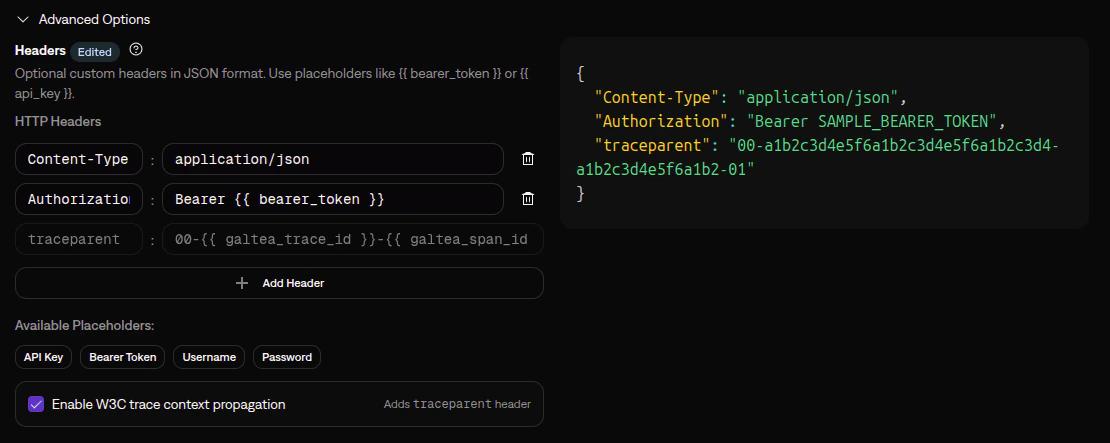 When the checkbox is unchecked, no `traceparent` header is sent to your endpoint, and trace context is not propagated.
This option is only available for **Conversation** endpoint connections — the ones that handle inference calls. Initialization and Finalization endpoints are session lifecycle calls where trace correlation does not apply.
The trace ID is stored on each inference result and visible in the dashboard, so you can correlate traces even without checking your observability platform.
#### 2. Configure your service for OTEL
Ensure your service has OpenTelemetry instrumentation enabled. Most frameworks support [auto-instrumentation](https://opentelemetry.io/docs/zero-code/) which requires no code changes:
```bash theme={"system"}
# Python example
pip install opentelemetry-distro opentelemetry-exporter-otlp
opentelemetry-bootstrap -a install
```
#### 3. Point your OTEL exporter to the Galtea collector
Configure your OTEL exporter to send traces to the Galtea collector. Every request must carry an `Authorization: Bearer ` header — without it, the gateway returns `401 Unauthorized` before the request reaches the collector.
All examples below use the Galtea platform hostname: `otel.platform.prod-main.galtea.ai`.
If your organization has a private Galtea deployment, replace the hostname with your tenant-specific endpoint:
```
otel.platform..galtea.ai
```
Your Galtea account team will provide the exact hostname during onboarding.
The OpenTelemetry SDK reads endpoint and headers from environment variables. Use shell substitution to expand `${GALTEA_API_KEY}` *before* the value is stored in `OTEL_EXPORTER_OTLP_TRACES_HEADERS`:
```bash theme={"system"}
export GALTEA_API_KEY="gsk_..."
export OTEL_EXPORTER_OTLP_TRACES_ENDPOINT="https://otel.platform.prod-main.galtea.ai:4318/otel/traces"
export OTEL_EXPORTER_OTLP_TRACES_HEADERS="Authorization=Bearer ${GALTEA_API_KEY}"
```
The same `${GALTEA_API_KEY}` syntax works inside a `docker-compose.yml` `environment:` block — Docker Compose performs the substitution before the container starts.
Use `OTEL_EXPORTER_OTLP_TRACES_ENDPOINT` (the per-signal variant), not `OTEL_EXPORTER_OTLP_ENDPOINT`. The base variable auto-appends `/v1/traces` to the URL, but the Galtea collector expects the `/otel/traces` path.
The header variable is reused — only the endpoint, protocol, and port change:
```bash theme={"system"}
export GALTEA_API_KEY="gsk_..."
export OTEL_EXPORTER_OTLP_TRACES_ENDPOINT="https://otel.platform.prod-main.galtea.ai:4317"
export OTEL_EXPORTER_OTLP_TRACES_PROTOCOL="grpc"
export OTEL_EXPORTER_OTLP_TRACES_HEADERS="Authorization=Bearer ${GALTEA_API_KEY}"
```
Older deployments may reject the gRPC TLS handshake with `missing selected ALPN property`. This affects modern gRPC clients that strictly enforce ALPN (originally surfaced with grpc-go ≥ 1.67, and reproducible from `grpcio` too). It is a platform-side NLB configuration that is being rolled out — if you encounter it, use the HTTP/4318 endpoint until your environment is updated.
The OTel exporter does **not** interpolate placeholders inside `OTEL_EXPORTER_OTLP_TRACES_HEADERS` — it sends the value verbatim. Exporting `Authorization=Bearer $GALTEA_API_KEY` without shell expansion (for example, single-quoted, or written into a `.env` file that your runtime loads without expanding it) literally sends the string `$GALTEA_API_KEY` and the gateway returns `401 Unauthorized`. Ensure the expansion happens at export time, not later.
If you would rather configure the exporter in code, build the `OTLPSpanExporter` directly and read the API key from the environment at runtime. The exporter sends the header value exactly as provided — the `f"Bearer {galtea_api_key}"` formatting happens once at startup, so there is no ambiguity about when the key is substituted.
```python theme={"system"}
import os
from opentelemetry import trace
from opentelemetry.exporter.otlp.proto.http.trace_exporter import OTLPSpanExporter
from opentelemetry.sdk.trace import TracerProvider
from opentelemetry.sdk.trace.export import BatchSpanProcessor
# Read the Galtea API key from the environment at runtime.
# The exporter will send it as `Authorization: Bearer ` on every request.
galtea_api_key = os.environ.get("GALTEA_API_KEY")
if not galtea_api_key:
raise ValueError("GALTEA_API_KEY environment variable is not set")
exporter = OTLPSpanExporter(
endpoint="https://otel.platform.prod-main.galtea.ai:4318/otel/traces",
headers={"Authorization": f"Bearer {galtea_api_key}"},
)
# Register the exporter without clobbering a provider another library may have
# already installed — e.g. `opentelemetry-bootstrap` auto-instrumentation (set up
# in step 2 above) or the Galtea SDK. `set_tracer_provider()` is a silent no-op if
# a real provider is already active, so only create one when the active provider is
# still the default proxy; otherwise attach the exporter to the existing provider.
provider = trace.get_tracer_provider()
if isinstance(provider, trace.ProxyTracerProvider):
provider = TracerProvider()
trace.set_tracer_provider(provider)
provider.add_span_processor(BatchSpanProcessor(exporter))
```
Use the gRPC exporter from `opentelemetry.exporter.otlp.proto.grpc` and point it at port 4317 (no URL path):
```python theme={"system"}
import os
from opentelemetry import trace
from opentelemetry.exporter.otlp.proto.grpc.trace_exporter import OTLPSpanExporter
from opentelemetry.sdk.trace import TracerProvider
from opentelemetry.sdk.trace.export import BatchSpanProcessor
# Read the Galtea API key from the environment at runtime.
# The exporter will send it as `Authorization: Bearer ` on every request.
galtea_api_key = os.environ.get("GALTEA_API_KEY")
if not galtea_api_key:
raise ValueError("GALTEA_API_KEY environment variable is not set")
# gRPC exporter: the endpoint is `host:port` (no URL path), with TLS enabled.
# gRPC metadata keys must be lowercase, so the header is `authorization`.
exporter = OTLPSpanExporter(
endpoint="otel.platform.prod-main.galtea.ai:4317",
insecure=False,
headers=(("authorization", f"Bearer {galtea_api_key}"),),
)
# Register the exporter without clobbering a provider another library may have
# already installed — e.g. `opentelemetry-bootstrap` auto-instrumentation (set up
# in step 2 above) or the Galtea SDK. `set_tracer_provider()` is a silent no-op if
# a real provider is already active, so only create one when the active provider is
# still the default proxy; otherwise attach the exporter to the existing provider.
provider = trace.get_tracer_provider()
if isinstance(provider, trace.ProxyTracerProvider):
provider = TracerProvider()
trace.set_tracer_provider(provider)
provider.add_span_processor(BatchSpanProcessor(exporter))
```
Older deployments may reject the gRPC TLS handshake with `missing selected ALPN property`. This affects modern gRPC clients that strictly enforce ALPN (originally surfaced with grpc-go ≥ 1.67, and reproducible from `grpcio` too). It is a platform-side NLB configuration that is being rolled out — if you encounter it, use the HTTP/4318 exporter until your environment is updated.
If you already run your own OpenTelemetry Collector, configure it to forward the `traces` pipeline to Galtea. Choose the outbound protocol that suits your deployment:
```yaml theme={"system"}
receivers:
otlp:
protocols:
grpc:
endpoint: 0.0.0.0:4317
http:
endpoint: 0.0.0.0:4318
processors:
batch:
timeout: 1s
send_batch_size: 512
exporters:
otlphttp/galtea:
# Galtea expects /otel/traces, NOT the OTLP default /v1/traces.
traces_endpoint: https://otel.platform.prod-main.galtea.ai:4318/otel/traces
headers:
Authorization: "Bearer ${env:GALTEA_API_KEY}"
encoding: json
compression: gzip
service:
pipelines:
traces:
receivers: [otlp]
processors: [batch]
exporters: [otlphttp/galtea]
```
```yaml theme={"system"}
receivers:
otlp:
protocols:
grpc:
endpoint: 0.0.0.0:4317
http:
endpoint: 0.0.0.0:4318
processors:
batch:
timeout: 1s
send_batch_size: 512
exporters:
otlp/galtea:
endpoint: otel.platform.prod-main.galtea.ai:4317
tls:
insecure: false
headers:
Authorization: "Bearer ${env:GALTEA_API_KEY}"
compression: gzip
service:
pipelines:
traces:
receivers: [otlp]
processors: [batch]
exporters: [otlp/galtea]
```
`${env:GALTEA_API_KEY}` is the OpenTelemetry Collector's **own** environment-variable interpolation syntax — it is resolved by the Collector itself when it loads the config. This is different from the shell `${GALTEA_API_KEY}` syntax used in the SDK env-var tabs (which is resolved by the shell at export time). Using shell syntax in a Collector config (or Collector syntax in a shell export) will send a literal, unexpanded string and the gateway will return `401 Unauthorized`.
Once configured, spans from your service will be automatically linked to the corresponding Galtea inference results via the shared trace ID.
##### Verify the endpoint accepts your key
A quick way to confirm the header is being applied correctly is to POST an empty payload and inspect the status code:
```bash theme={"system"}
curl -sS -w 'HTTP %{http_code}\n' -X POST \
-H "Content-Type: application/json" \
-H "Authorization: Bearer ${GALTEA_API_KEY}" \
-d '{"resourceSpans":[]}' \
https://otel.platform.prod-main.galtea.ai:4318/otel/traces
# Expect: HTTP 200 with an empty-success body — Galtea's gateway returns {"partialSuccess":{}}
# Without the Authorization header: HTTP 401 — "Provide a valid galtea API key token"
```
This approach only works for **Direct Inference** (where Galtea initiates the call to your endpoint). For SDK-based connections where your code calls the Galtea API, use the SDK's [trace context](/sdk/api/trace/set-context) mechanism instead.
#### 4. Controlling how spans map to Trace records
When using the OTel Collector path, you can set Galtea-specific attributes on your spans to control how data maps to Trace records. If you don't set any, spans are still ingested using the automatically mapped OTel fields.
**Galtea span attributes:**
| Attribute Key | Type | Maps To | Description |
| ---------------------------- | --------------- | ------------------- | -------------------------------------------------------------------------------------------------------------------------------------------------------------------------------------- |
| `galtea.trace.type` | `string` | `type` | Trace type. One of: `SPAN`, `GENERATION`, `EVENT`, `AGENT`, `TOOL`, `CHAIN`, `RETRIEVER`, `EVALUATOR`, `EMBEDDING`, `GUARDRAIL`. |
| `galtea.trace.description` | `string` | `description` | Human-readable description of the operation. Max 1MB. |
| `galtea.trace.input` | `string` (JSON) | `inputData` | Input data, JSON-serialized. Max 10MB. |
| `galtea.trace.output` | `string` (JSON) | `outputData` | Output data, JSON-serialized. Max 10MB. |
| `galtea.trace.error` | `string` | `error` | Error message. Takes precedence over OTel span status error. |
| `galtea.trace.metadata` | `string` (JSON) | `metadata` | Custom metadata, JSON-serialized. Max 10MB. |
| `galtea.inference_result.id` | `string` | `inferenceResultId` | Explicitly links the span to an inference result. Only needed if the automatic `traceId` correlation does not apply (e.g., spans not originating from a Galtea direct inference call). |
**Automatically mapped OTel fields** (no custom attributes needed):
* **`span.name`** → `name`
* **`startTimeUnixNano` / `endTimeUnixNano`** → `startTime` / `endTime` + `latencyMs` (computed)
* **`span.status`** → `error` (fallback when `galtea.trace.error` is not set; only for `STATUS_CODE_ERROR`)
* **`parentSpanId`** → `parentTraceId` (parent-child hierarchy)
All remaining unmapped span attributes are collected into the `metadata` field so no data is lost.
## Learn More
Full reference for configuring endpoint connections
Learn about versions and how endpoint connections integrate with them
Understand how evaluations work
Browse available metrics for evaluating your AI
Capture and analyze your agent's internal operations
When the checkbox is unchecked, no `traceparent` header is sent to your endpoint, and trace context is not propagated.
This option is only available for **Conversation** endpoint connections — the ones that handle inference calls. Initialization and Finalization endpoints are session lifecycle calls where trace correlation does not apply.
The trace ID is stored on each inference result and visible in the dashboard, so you can correlate traces even without checking your observability platform.
#### 2. Configure your service for OTEL
Ensure your service has OpenTelemetry instrumentation enabled. Most frameworks support [auto-instrumentation](https://opentelemetry.io/docs/zero-code/) which requires no code changes:
```bash theme={"system"}
# Python example
pip install opentelemetry-distro opentelemetry-exporter-otlp
opentelemetry-bootstrap -a install
```
#### 3. Point your OTEL exporter to the Galtea collector
Configure your OTEL exporter to send traces to the Galtea collector. Every request must carry an `Authorization: Bearer ` header — without it, the gateway returns `401 Unauthorized` before the request reaches the collector.
All examples below use the Galtea platform hostname: `otel.platform.prod-main.galtea.ai`.
If your organization has a private Galtea deployment, replace the hostname with your tenant-specific endpoint:
```
otel.platform..galtea.ai
```
Your Galtea account team will provide the exact hostname during onboarding.
The OpenTelemetry SDK reads endpoint and headers from environment variables. Use shell substitution to expand `${GALTEA_API_KEY}` *before* the value is stored in `OTEL_EXPORTER_OTLP_TRACES_HEADERS`:
```bash theme={"system"}
export GALTEA_API_KEY="gsk_..."
export OTEL_EXPORTER_OTLP_TRACES_ENDPOINT="https://otel.platform.prod-main.galtea.ai:4318/otel/traces"
export OTEL_EXPORTER_OTLP_TRACES_HEADERS="Authorization=Bearer ${GALTEA_API_KEY}"
```
The same `${GALTEA_API_KEY}` syntax works inside a `docker-compose.yml` `environment:` block — Docker Compose performs the substitution before the container starts.
Use `OTEL_EXPORTER_OTLP_TRACES_ENDPOINT` (the per-signal variant), not `OTEL_EXPORTER_OTLP_ENDPOINT`. The base variable auto-appends `/v1/traces` to the URL, but the Galtea collector expects the `/otel/traces` path.
The header variable is reused — only the endpoint, protocol, and port change:
```bash theme={"system"}
export GALTEA_API_KEY="gsk_..."
export OTEL_EXPORTER_OTLP_TRACES_ENDPOINT="https://otel.platform.prod-main.galtea.ai:4317"
export OTEL_EXPORTER_OTLP_TRACES_PROTOCOL="grpc"
export OTEL_EXPORTER_OTLP_TRACES_HEADERS="Authorization=Bearer ${GALTEA_API_KEY}"
```
Older deployments may reject the gRPC TLS handshake with `missing selected ALPN property`. This affects modern gRPC clients that strictly enforce ALPN (originally surfaced with grpc-go ≥ 1.67, and reproducible from `grpcio` too). It is a platform-side NLB configuration that is being rolled out — if you encounter it, use the HTTP/4318 endpoint until your environment is updated.
The OTel exporter does **not** interpolate placeholders inside `OTEL_EXPORTER_OTLP_TRACES_HEADERS` — it sends the value verbatim. Exporting `Authorization=Bearer $GALTEA_API_KEY` without shell expansion (for example, single-quoted, or written into a `.env` file that your runtime loads without expanding it) literally sends the string `$GALTEA_API_KEY` and the gateway returns `401 Unauthorized`. Ensure the expansion happens at export time, not later.
If you would rather configure the exporter in code, build the `OTLPSpanExporter` directly and read the API key from the environment at runtime. The exporter sends the header value exactly as provided — the `f"Bearer {galtea_api_key}"` formatting happens once at startup, so there is no ambiguity about when the key is substituted.
```python theme={"system"}
import os
from opentelemetry import trace
from opentelemetry.exporter.otlp.proto.http.trace_exporter import OTLPSpanExporter
from opentelemetry.sdk.trace import TracerProvider
from opentelemetry.sdk.trace.export import BatchSpanProcessor
# Read the Galtea API key from the environment at runtime.
# The exporter will send it as `Authorization: Bearer ` on every request.
galtea_api_key = os.environ.get("GALTEA_API_KEY")
if not galtea_api_key:
raise ValueError("GALTEA_API_KEY environment variable is not set")
exporter = OTLPSpanExporter(
endpoint="https://otel.platform.prod-main.galtea.ai:4318/otel/traces",
headers={"Authorization": f"Bearer {galtea_api_key}"},
)
# Register the exporter without clobbering a provider another library may have
# already installed — e.g. `opentelemetry-bootstrap` auto-instrumentation (set up
# in step 2 above) or the Galtea SDK. `set_tracer_provider()` is a silent no-op if
# a real provider is already active, so only create one when the active provider is
# still the default proxy; otherwise attach the exporter to the existing provider.
provider = trace.get_tracer_provider()
if isinstance(provider, trace.ProxyTracerProvider):
provider = TracerProvider()
trace.set_tracer_provider(provider)
provider.add_span_processor(BatchSpanProcessor(exporter))
```
Use the gRPC exporter from `opentelemetry.exporter.otlp.proto.grpc` and point it at port 4317 (no URL path):
```python theme={"system"}
import os
from opentelemetry import trace
from opentelemetry.exporter.otlp.proto.grpc.trace_exporter import OTLPSpanExporter
from opentelemetry.sdk.trace import TracerProvider
from opentelemetry.sdk.trace.export import BatchSpanProcessor
# Read the Galtea API key from the environment at runtime.
# The exporter will send it as `Authorization: Bearer ` on every request.
galtea_api_key = os.environ.get("GALTEA_API_KEY")
if not galtea_api_key:
raise ValueError("GALTEA_API_KEY environment variable is not set")
# gRPC exporter: the endpoint is `host:port` (no URL path), with TLS enabled.
# gRPC metadata keys must be lowercase, so the header is `authorization`.
exporter = OTLPSpanExporter(
endpoint="otel.platform.prod-main.galtea.ai:4317",
insecure=False,
headers=(("authorization", f"Bearer {galtea_api_key}"),),
)
# Register the exporter without clobbering a provider another library may have
# already installed — e.g. `opentelemetry-bootstrap` auto-instrumentation (set up
# in step 2 above) or the Galtea SDK. `set_tracer_provider()` is a silent no-op if
# a real provider is already active, so only create one when the active provider is
# still the default proxy; otherwise attach the exporter to the existing provider.
provider = trace.get_tracer_provider()
if isinstance(provider, trace.ProxyTracerProvider):
provider = TracerProvider()
trace.set_tracer_provider(provider)
provider.add_span_processor(BatchSpanProcessor(exporter))
```
Older deployments may reject the gRPC TLS handshake with `missing selected ALPN property`. This affects modern gRPC clients that strictly enforce ALPN (originally surfaced with grpc-go ≥ 1.67, and reproducible from `grpcio` too). It is a platform-side NLB configuration that is being rolled out — if you encounter it, use the HTTP/4318 exporter until your environment is updated.
If you already run your own OpenTelemetry Collector, configure it to forward the `traces` pipeline to Galtea. Choose the outbound protocol that suits your deployment:
```yaml theme={"system"}
receivers:
otlp:
protocols:
grpc:
endpoint: 0.0.0.0:4317
http:
endpoint: 0.0.0.0:4318
processors:
batch:
timeout: 1s
send_batch_size: 512
exporters:
otlphttp/galtea:
# Galtea expects /otel/traces, NOT the OTLP default /v1/traces.
traces_endpoint: https://otel.platform.prod-main.galtea.ai:4318/otel/traces
headers:
Authorization: "Bearer ${env:GALTEA_API_KEY}"
encoding: json
compression: gzip
service:
pipelines:
traces:
receivers: [otlp]
processors: [batch]
exporters: [otlphttp/galtea]
```
```yaml theme={"system"}
receivers:
otlp:
protocols:
grpc:
endpoint: 0.0.0.0:4317
http:
endpoint: 0.0.0.0:4318
processors:
batch:
timeout: 1s
send_batch_size: 512
exporters:
otlp/galtea:
endpoint: otel.platform.prod-main.galtea.ai:4317
tls:
insecure: false
headers:
Authorization: "Bearer ${env:GALTEA_API_KEY}"
compression: gzip
service:
pipelines:
traces:
receivers: [otlp]
processors: [batch]
exporters: [otlp/galtea]
```
`${env:GALTEA_API_KEY}` is the OpenTelemetry Collector's **own** environment-variable interpolation syntax — it is resolved by the Collector itself when it loads the config. This is different from the shell `${GALTEA_API_KEY}` syntax used in the SDK env-var tabs (which is resolved by the shell at export time). Using shell syntax in a Collector config (or Collector syntax in a shell export) will send a literal, unexpanded string and the gateway will return `401 Unauthorized`.
Once configured, spans from your service will be automatically linked to the corresponding Galtea inference results via the shared trace ID.
##### Verify the endpoint accepts your key
A quick way to confirm the header is being applied correctly is to POST an empty payload and inspect the status code:
```bash theme={"system"}
curl -sS -w 'HTTP %{http_code}\n' -X POST \
-H "Content-Type: application/json" \
-H "Authorization: Bearer ${GALTEA_API_KEY}" \
-d '{"resourceSpans":[]}' \
https://otel.platform.prod-main.galtea.ai:4318/otel/traces
# Expect: HTTP 200 with an empty-success body — Galtea's gateway returns {"partialSuccess":{}}
# Without the Authorization header: HTTP 401 — "Provide a valid galtea API key token"
```
This approach only works for **Direct Inference** (where Galtea initiates the call to your endpoint). For SDK-based connections where your code calls the Galtea API, use the SDK's [trace context](/sdk/api/trace/set-context) mechanism instead.
#### 4. Controlling how spans map to Trace records
When using the OTel Collector path, you can set Galtea-specific attributes on your spans to control how data maps to Trace records. If you don't set any, spans are still ingested using the automatically mapped OTel fields.
**Galtea span attributes:**
| Attribute Key | Type | Maps To | Description |
| ---------------------------- | --------------- | ------------------- | -------------------------------------------------------------------------------------------------------------------------------------------------------------------------------------- |
| `galtea.trace.type` | `string` | `type` | Trace type. One of: `SPAN`, `GENERATION`, `EVENT`, `AGENT`, `TOOL`, `CHAIN`, `RETRIEVER`, `EVALUATOR`, `EMBEDDING`, `GUARDRAIL`. |
| `galtea.trace.description` | `string` | `description` | Human-readable description of the operation. Max 1MB. |
| `galtea.trace.input` | `string` (JSON) | `inputData` | Input data, JSON-serialized. Max 10MB. |
| `galtea.trace.output` | `string` (JSON) | `outputData` | Output data, JSON-serialized. Max 10MB. |
| `galtea.trace.error` | `string` | `error` | Error message. Takes precedence over OTel span status error. |
| `galtea.trace.metadata` | `string` (JSON) | `metadata` | Custom metadata, JSON-serialized. Max 10MB. |
| `galtea.inference_result.id` | `string` | `inferenceResultId` | Explicitly links the span to an inference result. Only needed if the automatic `traceId` correlation does not apply (e.g., spans not originating from a Galtea direct inference call). |
**Automatically mapped OTel fields** (no custom attributes needed):
* **`span.name`** → `name`
* **`startTimeUnixNano` / `endTimeUnixNano`** → `startTime` / `endTime` + `latencyMs` (computed)
* **`span.status`** → `error` (fallback when `galtea.trace.error` is not set; only for `STATUS_CODE_ERROR`)
* **`parentSpanId`** → `parentTraceId` (parent-child hierarchy)
All remaining unmapped span attributes are collected into the `metadata` field so no data is lost.
## Learn More
Full reference for configuring endpoint connections
Learn about versions and how endpoint connections integrate with them
Understand how evaluations work
Browse available metrics for evaluating your AI
Capture and analyze your agent's internal operations