

This guide covers the platform-based workflow. If you prefer to generate inferences programmatically (e.g., in a CI/CD pipeline or custom script), see the SDK tutorials instead.
Prerequisites
Before you begin, make sure you have the following set up in the Galtea Dashboard:- A Product representing your AI system
- A Dataset with at least one Test Case to run against your endpoint
Workflow Overview
1
Create an Endpoint Connection
Define how Galtea should call your AI endpoint — URL, authentication, request format, and response extraction.
2
Create a Version with the Endpoint Connection
Create a new version of your product and attach the endpoint connection to it.
3
Run an Evaluation from the Dashboard
Open the version and choose the datasets and metrics to run. Galtea calls your endpoint for each test case, records the traces, and evaluates them.
4
Evaluate Again with Other Metrics
Optional. Score an existing session again with different metrics, without calling your endpoint a second time.
Step 1: Create an Endpoint Connection
Navigate to your product in the Dashboard, switch to Development view mode, and open the Connections section in the sidebar (under Product), then the Endpoints tab. Click New Endpoint Connection and configure the following:- Name — A descriptive name (e.g., “Production Chat API”).
- Type — Select
CONVERSATIONfor the primary request/response endpoint. - URL — The full URL of your AI endpoint (e.g.,
https://api.company.com/v1/chat). - HTTP Method — Typically
POST. - Authentication — Choose the auth type (
Bearer,API_KEY,Basic, orNone) and provide the token. - Input Template — A Jinja2 template that defines the request body Galtea will send.
- Output Mapping — JSONPath expressions that tell Galtea how to extract values from the response.
Input Template
The input template uses Jinja2 syntax with placeholders that Galtea fills automatically. At minimum, use{{ input.user_message }} to inject the test case input:
past_turns to include conversation history:
input_files to send it to your endpoint:
{{ input_files[0].base64 }} instead when your endpoint takes the bytes in the request body. A test case that attaches files is refused when the template names no input_files variable.
Output Mapping
The output mapping tells Galtea how to extract values from the API response using JSONPath expressions. Theoutput key is required:
output, retrieval_context, session_id, traces, output_files) is saved to the session metadata and becomes available as a {{ key }} placeholder in subsequent turns.
Sending an extracted value back (the round-trip)
Extracting a value is only half of stateful multi-turn handling. If your agent returns an identifier on the first turn — athread_id, conversation_id, or any token that groups subsequent messages — you must also reference it in the Input Template so Galtea sends it back on the next turn. Extraction alone stores the value but never resends it.
The round-trip has two coordinated sides:
- Turn 1 —
thread_idhas no value yet, so{{ thread_id }}renders as an empty string. Your agent creates a new thread and returns its id in the response. - Extraction — Output Mapping captures
$.thread_idinto session metadata. - Turn 2+ —
{{ thread_id }}now renders the captured id, so every following message is routed to the same thread.
See Templates & Mapping — State Management for the full reference on how extracted values are stored and reused across turns.
Step 2: Create a Version with the Endpoint Connection
Navigate to your product and create a new Version. When configuring the version:- Fill in the version name, model, and any other relevant properties.
- Turn on the Link Connection toggle. It is off by default; turning it on reveals the connection fields.
- Choose HTTP Endpoint as the Conversation Target.
- In the Endpoint Connection field, select the endpoint connection you created in Step 1.
If your AI system requires separate endpoints for session initialization or cleanup, you can optionally configure Initialization and Finalization endpoint connections. These also appear only under Link Connection with the HTTP Endpoint target. See Endpoint Connection — Multi-Step Session Lifecycle for details.
Step 3: Run an Evaluation
Once your version is set up with an endpoint connection, you can run it from the Dashboard. Evaluations start from the version, not from the dataset:- Navigate to your product’s Versions section.
- Open the version with the configured endpoint connection, or use the Run Evaluation button on its row.
- Pick what to run in the dialog:
- Specifications (recommended): every runnable Specification is preselected, and its linked datasets and metrics are taken from it.
- Datasets & Metrics: choose the datasets and Metrics yourself.
- Start the run.
Step 4: Evaluate Again with Other Metrics
The run above already produces scores. Use this step only when you want to score inferences you already have, for example against a metric you added later. It reuses the recorded inferences and does not call your endpoint again:- Navigate to the session in the Dashboard.
- Click Run Evaluation.
- Select the Metrics you want to use.
- Run the evaluation.
Collecting Spans During Direct Inference
There are three ways to collect spans during Direct Inference:- Output Mapping (no code) — Extract spans from the API response using a
traceskey in your output mapping. - SDK
set_context(in your handler) — Pass{{ trace_id }}to your endpoint and use the SDK to create spans from within the handler. - W3C Trace Context Propagation (zero code) — Enable the
traceparentheader to automatically correlate your OTEL spans with Galtea traces.
Option 1: Extract Spans via Output Mapping
If your endpoint returns span data in its response, you can extract it using thetraces key in the output mapping. Galtea will store each span object linked to the trace automatically.
Example API response:
traces array and creates Span entities linked to the trace. Each object in the array must contain at least a name field and can include any Span properties:
Option 2: Use set_context in Your Endpoint Handler
When running evaluations via Direct Inference, you can collect spans from your endpoint handler by linking the trace_id to your span context. Galtea automatically sends the X-Galtea-Inference-Id HTTP header with every Direct Inference request, so your endpoint can read it directly — no template changes needed.
Alternatively, you can pass {{ trace_id }} in the input template if you prefer to receive it in the request body.
1. Get the trace_id
From the HTTP header (recommended) — available automatically on every Direct Inference call:
2. Use set_context in Your Endpoint Handler
In your API endpoint, extract the trace_id from the request and use the SDK’s set_context / clear_context to associate spans with it:
@traced-decorated functions called while the context is active will be automatically linked to the trace in Galtea.
For a complete guide on tracing setup, decorators, and context managers, see the Tracing Agent Operations tutorial.
Option 3: W3C Trace Context Propagation
If your service is instrumented with OpenTelemetry, you can automatically correlate your internal spans with Galtea traces using the W3C Trace Context standard — no code changes required on your side.Prerequisites: Your service must be instrumented with OpenTelemetry and must receive the
traceparent header Galtea sends with each Direct Inference request. This option correlates your spans with the traces Direct Inference creates. To create production sessions from OTel traces without Direct Inference, see Monitor Real User Traffic via OpenTelemetry.How it works
When enabled, Galtea creates a unique W3C trace ID for each direct inference call and injects atraceparent header into the outbound request to your endpoint. Your OTEL-instrumented service automatically creates child spans under that OpenTelemetry trace. Galtea stores that W3C trace ID on the Trace, in its OpenTelemetry Trace ID field, so a collector can correlate the two.
1. Enable trace context propagation on your endpoint connection
In your Conversation endpoint connection, expand the Advanced Options section and scroll to Headers. Check the Enable W3C trace context propagation checkbox. This adds atraceparent header that Galtea will populate with the correct trace and span IDs on each inference call:
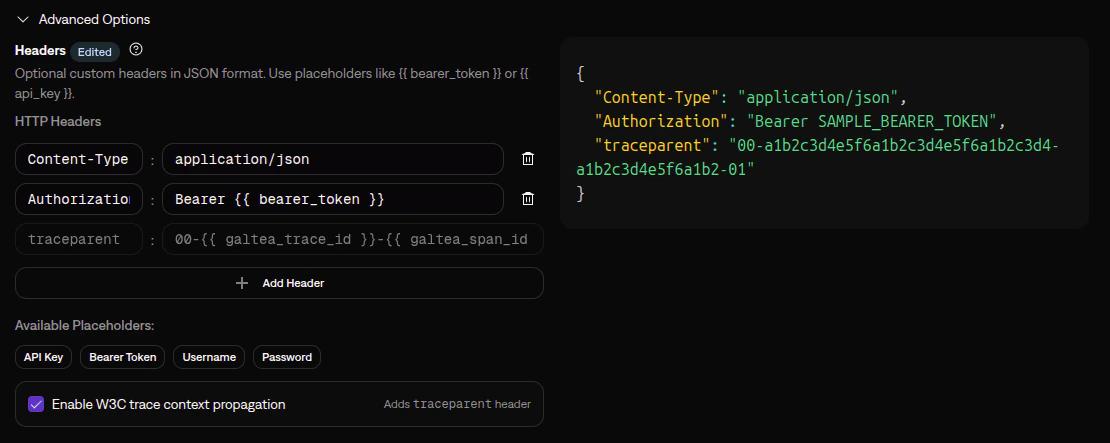
traceparent header is sent to your endpoint, and trace context is not propagated.
This option is only available for Conversation endpoint connections — the ones that handle inference calls. Initialization and Finalization endpoints are session lifecycle calls where trace correlation does not apply.
2. Configure your service for OTEL
Ensure your service has OpenTelemetry instrumentation enabled. Most frameworks support auto-instrumentation which requires no code changes:3. Send your spans to Galtea
Point your OTel exporter or Collector at Galtea’s public OTel endpoint. Send OpenTelemetry Traces to Galtea covers the endpoint, theAuthorization: Bearer <API key> requirement, the exporter and Collector configuration, and a curl check to verify your key.
Once configured, spans from your service will be automatically linked to the corresponding Galtea traces via the shared trace ID.
To control how span content maps to Span records (the
galtea.span.* attributes and the automatically mapped OTel fields), see How span content maps to Span records. To create production sessions from OTel traffic without Direct Inference, see Monitor Real User Traffic via OpenTelemetry.Learn More
Endpoint Connection
Full reference for configuring endpoint connections
Version
Learn about versions and how endpoint connections integrate with them
Evaluations
Understand how evaluations work
Metrics
Browse available metrics for evaluating your AI
Tracing Agent Operations
Capture and analyze your agent’s internal operations